The Amazon Fire TV Stick family — including the Fire TV Stick 4K Max, Fire TV Cube, and standard Fire TV Stick — represents one of the most cost-effective and capable hardware platforms for high-definition streaming available today. Equipped with a dedicated quad-core processor, hardware AV1/HEVC decoding, and native Dolby Vision and HDR10+ support, the Firestick turns any HDMI display into a premier entertainment hub. In this complete, step-by-step 2026 guide, we walk you through configuring norsk iptv on your Amazon Fire TV Stick in under 5 minutes.
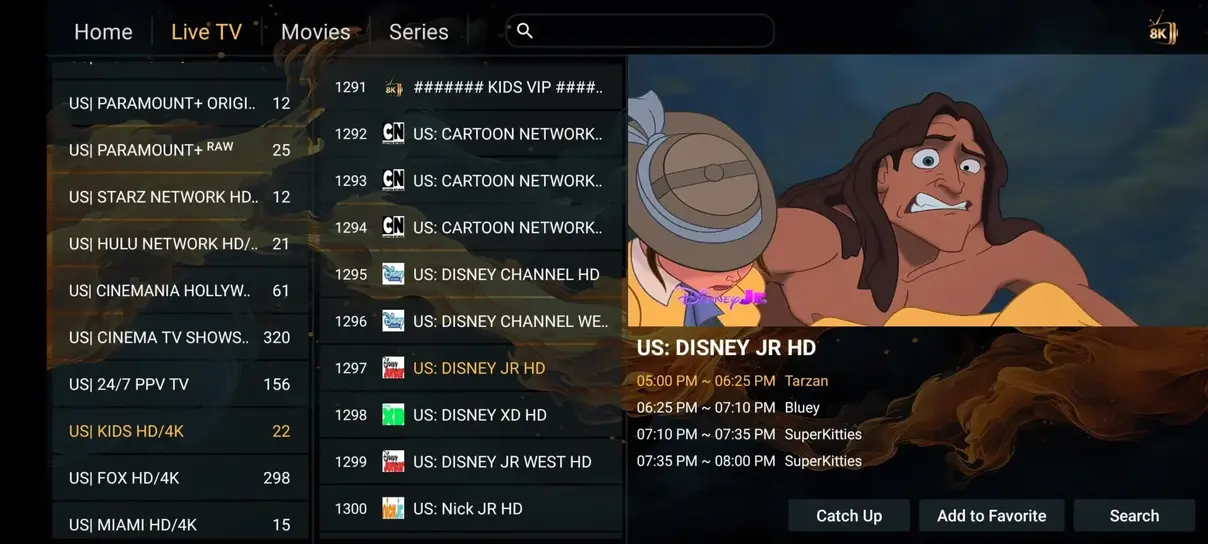
Figure 1: Amazon Fire TV streaming setup displaying categorized live channel bouquets and sports streams.
Why the Amazon Fire Stick is the Ideal IPTV Device
Unlike proprietary television operating systems that restrict third-party software installation, Fire OS is built upon an Android subsystem. This grants viewers total freedom to install superior media players such as TiviMate, IPTV Smarters Pro, and XCIPTV. When paired with our high-speed European streaming cluster, the Firestick delivers seamless 60 frames-per-second 4K UHD video output with sub-second channel switching.
Step 1: Prepare Your Fire Stick for App Sideloading
By default, Fire OS blocks direct application sideloading for safety. Enabling developer permissions takes less than 30 seconds:
- Turn on your television and Firestick to reach the main home screen ribbon.
- Navigate to the gear icon on the right side to open Settings.
- Scroll down and select My Fire TV (labeled “Device & Software” on older models).
- Select Developer Options. (Note: If “Developer Options” does not appear, click About, highlight “Fire TV Stick”, and press the remote Select button 7 times rapidly until a notification displays: “No need, you are already a developer”).
- Highlight Install Unknown Apps (or “Apps from Unknown Sources”) and set it to ON.
Step 2: Install the Downloader Application from Amazon Appstore
Downloader by AFTVnews is the official, secure tool used to safely fetch application installation files directly onto your Fire TV:
- Navigate to the Find (Magnifying Glass) icon on your Firestick home screen and select Search.
- Type
Downloaderusing your remote or Alexa voice command. - Select the orange Downloader application from the search results and click Download / Get.
- Once installation finishes, click Open.
- When prompted with permission requests to access storage and files, click Allow.
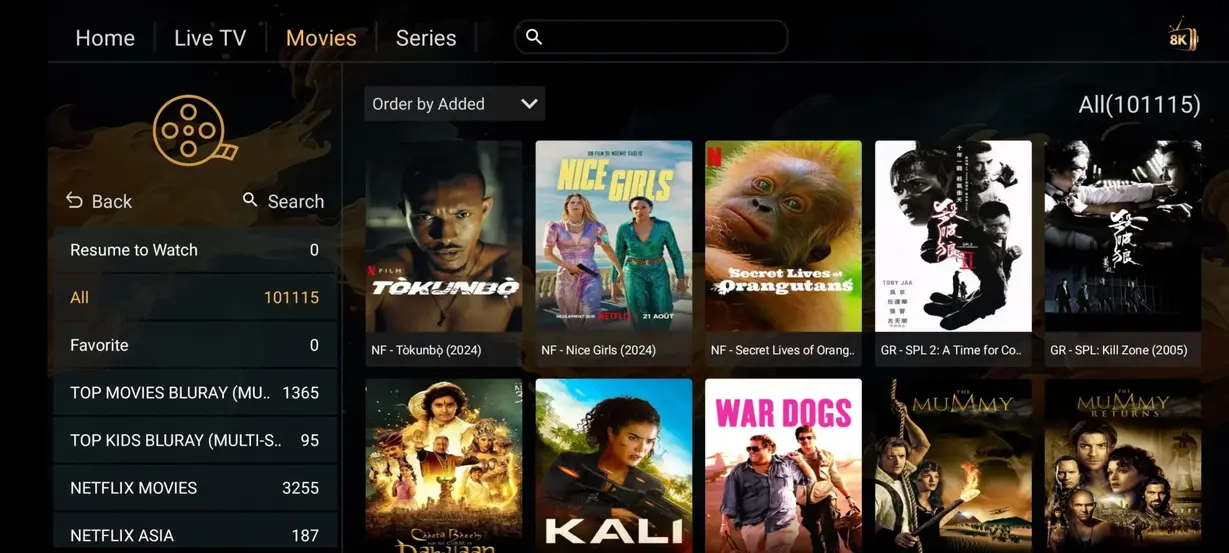
Figure 2: Multi-screen live view feature on Firestick streaming multiple games simultaneously.
Step 3: Download and Install Your Preferred IPTV Player
Inside the Downloader application, you can enter short numerical Downloader codes or direct URLs to fetch the APK file of your preferred IPTV player:
- For IPTV Smarters Pro: Enter the official Smarters APK URL or shortcode into Downloader and click Go.
- For TiviMate IPTV Player: Enter the TiviMate APK shortcode into Downloader and click Go.
- Wait a few moments for the download progress bar to reach 100%.
- A pop-up window will automatically appear asking if you want to install this application. Click Install in the bottom right corner.
- Once complete, click Done and select Delete on the subsequent prompt to remove the installer APK file and save valuable Firestick onboard storage.
Step 4: Authenticate with Your norsk iptv Credentials
Launch your newly installed IPTV player from your Firestick Apps library. To achieve the fastest server synchronization and full VOD metadata, select Login with Xtream Codes API:
- Any Name / Profile: Type
norsk iptv. - Username: Enter the unique username delivered to your WhatsApp or email receipt.
- Password: Enter your private account security key.
- Server URL / Portal: Enter the high-speed portal address provided in your welcome message (e.g.,
http://portal-url.me:8080). - Click Add User / Connect.
Your Firestick will instantly connect to our European load-balanced servers and download your personalized playlist containing over 35,000 live channels, complete Electronic Program Guides, and 142,000+ movie and series VOD titles.
Advanced Fire Stick Optimization for 4K 60FPS Sports
To guarantee zero stuttering, judder, or thermal throttling during intensive live sports broadcasts (such as Premier League, Eliteserien, or Champions League in 4K), apply these expert hardware tweaks:
- Display Match Frame Rate: In Firestick Settings → Display & Sounds → Display, enable “Match Original Frame Rate”. This ensures smooth 50Hz and 60Hz European broadcast playback without micro-judder.
- Audio Output Configuration: In Display & Sounds → Audio → Surround Sound, select “Best Available” or “PCM” to eliminate audio desynchronization on older TV soundbars.
- Clear Cache Periodically: In Settings → Applications → Manage Installed Applications, select your IPTV player and click “Clear Cache” once every two weeks to free memory buffers.
- Wired Ethernet Adapter: For total immunity against household Wi-Fi congestion, plug an official Amazon Fire TV Ethernet Adapter directly into your micro-USB power socket.
Comparison of Recommended Fire TV IPTV Players
| Player App | UI Style | Multi-Screen | EPG Guide | Recommended For |
|---|---|---|---|---|
| TiviMate | Classic TV Guide Grid | Yes (Up to 4) | Comprehensive | Live Sports Enthusiasts |
| IPTV Smarters Pro | Modern Tile Layout | Yes (Up to 4) | Standard | VOD Movies & Series |
| XCIPTV Player | VOD Carousel Interface | Yes (Dual View) | Standard | Simple Family Viewing |
Summary & Immediate Activation
Setting up your Amazon Fire Stick with norsk iptv delivers an exceptional, high-performance streaming setup that rivals costly digital television decoders at a fraction of the annual cost. For detailed walkthroughs on additional platforms, visit our comprehensive Installation Guide, or choose your subscription plan on our Pricing Page to receive your instant login credentials via WhatsApp.
Upgrade Your Entertainment with norsk iptv
Stream over 35,000 live channels in 4K resolution with zero buffer servers and instant activation.
Explore Subscription Plans →